Wooting 80HE+ Prebuilt
Last Updated: 14 October 2026
Introduction
Welcome to the Wooting family, and congratulations on your new Wooting 80HE+.
This guide will help you get ready to start playing. It only takes a few minutes, and it’s worth reading from start to finish.
Need help, want to share your setup, or just chat with other Wooting owners? Join our Discord community, where you’ll find fellow enthusiasts, helpful guides, and the latest updates.
Join the Wooting Discord server!
And if you're digging your setup, or built a cool custom Wooting, don't be shy and tweet us a sweet picture at @WootingKB.
What's inside the box?
Let's double-check if you've received the complete Wooting 80HE+ package.
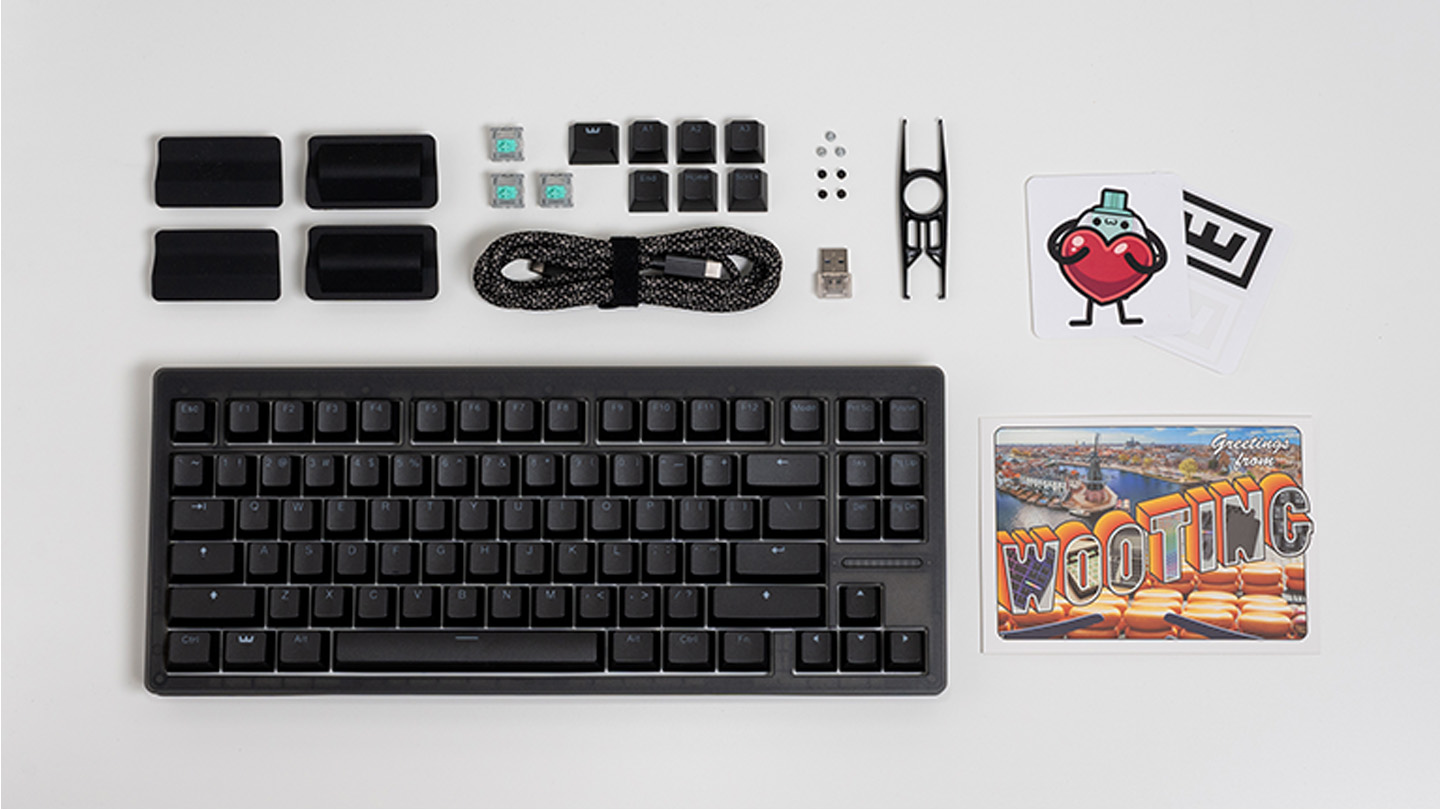
- 1 x Wooting 80HE+ (ANSI)
- 1 x Dust cover
- 1 x Keycap and switch puller
- 3 x Spare Lekker Tikken Medium switches
- 1 x USB-C to USB-C cable (2m / 6.6ft)
- 1 x Dongle USB-C (♀) to USB-A (♂)
- 2 x Silicone feet 6°
- 2 x Silicone feet 10°
- 4 x Spare case screws (M2×4.8mm)
- 3 x Spare PCBA screws (M2×4mm)
- 1 x Additional keycaps
- 1 x Switch installation guide
- 1 x Postcard
- 1 x Wooting stickers
Installing Keycaps
If you have a Wooting 80HE+ ISO model, it comes without keycaps pre-installed. Don't worry, installing them is simple and a great way to bond with your new keyboard.
Depending on the keycap set you have, installation can be as easy as transferring them straight from the blister tray onto your keyboard. Press each keycap down firmly so it sits snugly on the switch.
Select your keycap language below to see an example image of where each keycap goes.
Pulling Keycaps
If you've messed up your keycap placement, need to pull out the PCBA, or want to install a brand new set of keycaps, it's time to master the art of keycap pulling.
Your Wooting 80HE+ came with a keycap & switch puller. As the name suggests, it pulls both keycaps and switches. For now, use the side that says ‘Keycap’ and follow the instructions below.
01
Position the keycap puller
Align the puller over the keycap and push down. Make sure it *clicks* on both sides.
02
Pull the keycap straight up
Pull with one hand straight up. With your other hand hold down the keyboard.
03
Pop the keycap off
The keycap should pop off of the switch.
Pulling Switches
Want to install new switches? Grab the 'keycap & switch puller' that came with your keyboard. This time use the side of the tool that says ‘Switch’.
01
Grip the switch
Hook the puller onto the top (north) and bottom (south) of the switch.
02
Squeeze and wiggle
Gently squeeze the puller and wiggle the switch until it comes loose.
03
Lift the switch out
Pull the switch straight up and out of the socket.
Swapping Case
So you just got your new 80HE+ but want to swap your case for a different one? This video walks you through it step by step.
Keyboard modes & shortcuts
So you've got your new 80HE+, and you're ready to start typing. But before you do, you want to know the keyboard's default key mappings and shortcuts. We've got you covered.
Out of the box, your Wooting 80HE+ comes with 2 additional function layers that can be accessed using the Fn1 and Fn2 keys.
Below you find the default mapping, but anything can be changed in Wootility. None of the default functions are imprinted on the keycap, so you don't get confused when making your own.
Make sure to select the correct layout of your keyboard.
Your Wooting 80HE+ has two default profiles installed on board, a typing profile and a gaming profile (faster actuation and Rapid Trigger enabled).
You can save up to 4 profiles on your keyboard that can be accessed anywhere.
Hold down Fn then press 1, 2, 3, or 4
Wootility
Wootility is the software to configure your keyboard with. We have two versions of Wootility. A lightweight web version and a downloadable app. Whichever you choose, you don't need to have the Wootility running after configuring your keyboard.
We constantly improve our firmware and software. Make sure you have the latest and greatest by updating your keyboard straight away.
Go to https://wootility.io and connect your keyboard. Then:
- If a firmware update is available, you'll see a notification automatically. Alternatively, go to Settings → Updates → My Devices, hover over your device, and start the update.
- Issues while updating? This might help: Error during update or restore.
- For software updates, go to Settings → Updates and click 'Check for updates'
Still need help?
You don't need to figure out the world by yourself. You can get help within the Wooting community on our Discord server or reach us directly using our Support Wizard.
From Wooting.
With love.
Product updates, news, and launches.
Keyboards
Company
© 2015 - 2026 Wooting. All rights reserved.