Wootility 5.4: App Linking and Advanced Keys presets
2026年7月09日

Tim
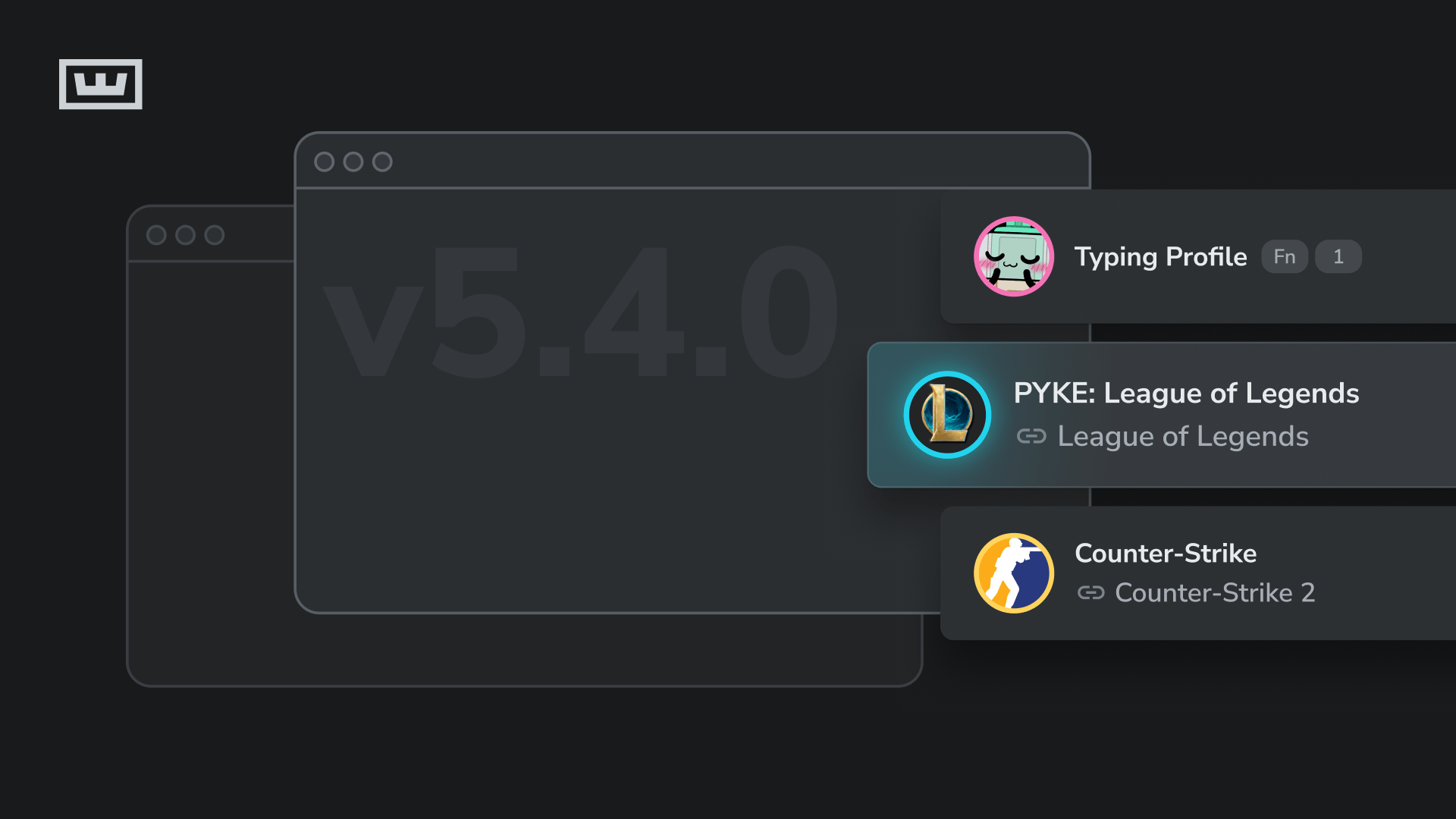
Wootility 5.4.0 is out now. The biggest new feature is App Linking, which links games or apps to Wootility profiles so they automatically become active when you open the linked game or app. We've also added preset bindings for Advanced Keys, so you can load commonly used Advanced Key setups into your profile in one click instead of setting them up manually.
App Linking
Wooting keyboards have long supported multiple profiles, making it easy to create different settings for different games and applications.
The catch was that you still had to remember to switch between them. It only takes a second, but it's also easy to forget.
That's exactly what App Linking solves. Set it up once, and you'll never have to think about switching profiles again.
Make the most of multiple profiles. Create dedicated settings for every game and app you use, and let App Linking handle the rest.
How App Linking works
The Wootility Background Service watches which app or game is opened, and tells your keyboard which linked profile to load as you switch between windows.
This means that Wooting Background Service needs to be running for App Linking to work, though Wootility itself doesn't. You only need to open Wootility when you want to edit profiles or change your linked apps.
Overriding App Linking with Mode and Cycle
Mode and Cycle are existing hotkeys for switching profiles manually, and they still work with linked profiles, so App Linking doesn't take away manual control.
Mode toggles between two profiles: when a linked profile is active, pressing it jumps you to the profile that is otherwise active when no game or app is opened. Pressing it again jumps back to the linked profile. That's useful if you want to briefly override what App Linking picked without unlinking anything.
Cycle steps through all onboard profiles and the linked profile in order (P1, P2, P3, P4, linked profile, P1, and so on).
How to set it up
- Go to Settings → Background Service and install the Wooting Background Service. If you're using Wootility in a browser, grant the required permissions when prompted.
- Open the My Profiles tab, drag and drop a profile into the Linked Profiles section, and link the app(s) you want to that profile. You can link up to 8 apps per profile.
- Launch any of the linked apps and your keyboard will switch profiles automatically.
Preset bindings for Advanced Keys
We've also added some preset bindings for Advanced Keys, so you can start from a pre-built setup instead of configuring everything from scratch. A few examples you can now apply in one click:
- Mod Tap arrow keys (Wooting 60HE & 60HE v2)
- Rappy Snappy for instant strafe switching
- DKS on WASD for walking/running in games
- Toggle to Function Layer 1
Full changelog
For a full overview of this update, check out the changelog here.
The Wootility team is hiring!
Interested in working on Wootility? We're looking for a frontend developer to join the team. Apply here.
来自 Wooting。
用心为您。
最新产品信息、新闻和发布。
键盘