Wooting 80HE+ Module
最后更新:2026年10月14日
Introduction
Welcome to the Wooting family, and congratulations on your new Wooting 80HE+ Module.
This guide will help you get ready to start playing. It only takes a few minutes, and it’s worth reading from start to finish.
Need help, want to share your setup, or just chat with other Wooting owners? Join our Discord community, where you’ll find fellow enthusiasts, helpful guides, and the latest updates.
You are hereby invited to join the Wooting Discord server!
And if you're digging your set-up, or built a cool custom Wooting, don't be shy and tweet us a sweet picture at @WootingKB.
What's inside the box?
Let's double-check if you've received the complete Wooting 80HE+ Module package.
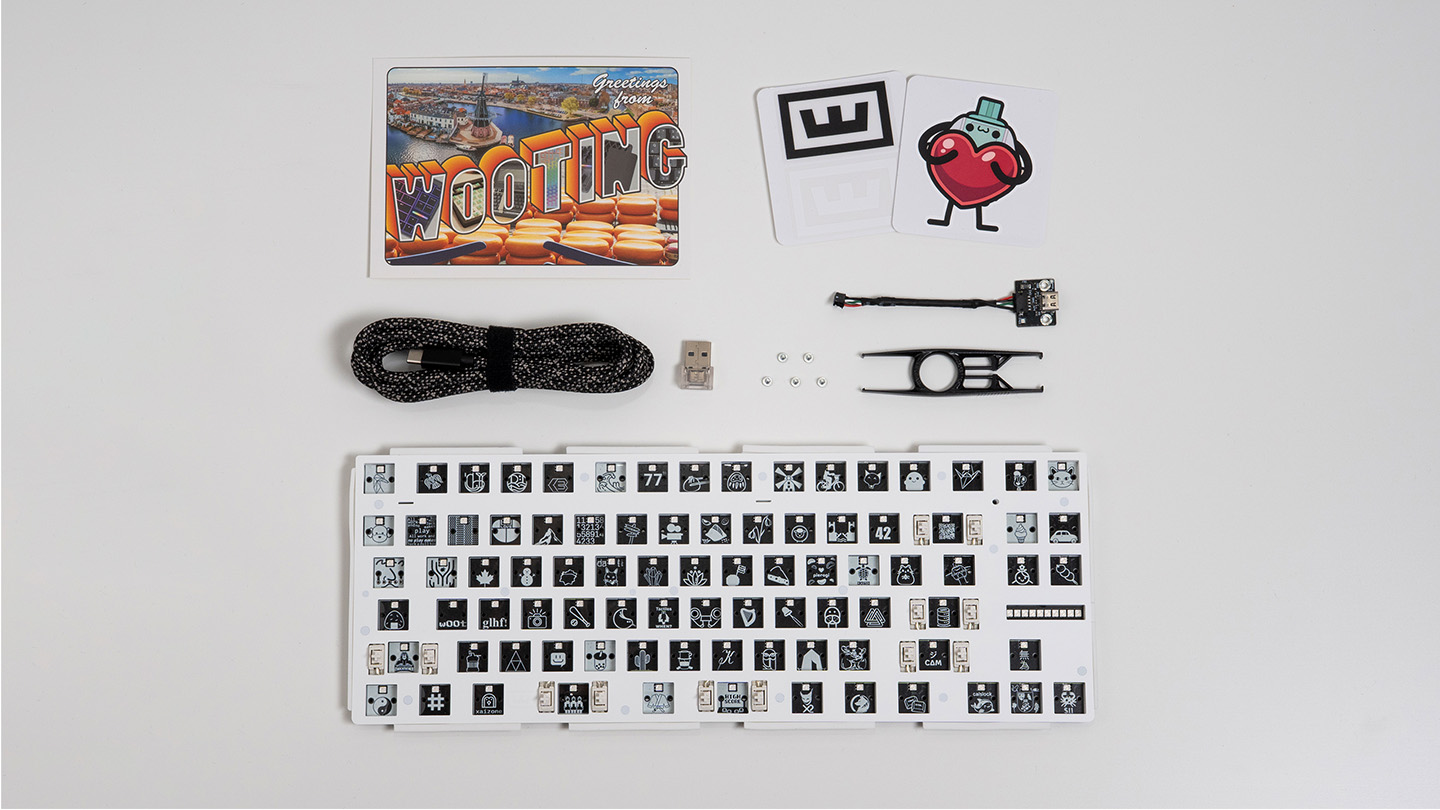
- 1 x Wooting 80HE+ Module
- 1 x USB-C daughterboard + internal cable
- 2 x Daughterboard mounting screws (M2x4mm)
- 1 x Keycap and switch puller
- 1 x USB-C to USB-C cable (2m / 6.6ft)
- 1 x Dongle USB-C (♀) to USB-A (♂)
- 3 x Spare PCBA screws (M2x4mm)
- 1 x Switch installation guide
- 1 x Postcard
- 1 x Wooting stickers
Mounting the Module
Follow the video below to install your Module into its case. If you’re using a third-party case, installation may differ, so be sure to follow the instructions provided with your case.
Installing Keycaps
Depending on the keycap set you have, installation can be as easy as transferring them straight from the blister tray onto your keyboard. Press each keycap down firmly so it sits snugly on the switch.
Below is a visual overview of the ANSI layout and all available ISO keycap languages. Choose the language that matches your keycaps.
Select your keycap language below to see an example image of where each keycap goes.
Pulling Keycaps
If you've messed up your keycap placement, need to pull out the PCBA, or want to install a brand new set of keycaps, it's time to master the art of keycap pulling.
Your Wooting 80HE+ Module came with a keycap & switch puller. As the name suggests, it pulls both keycaps and switches. For now, use the side that says K*eycap* and follow the instructions below.
01
Position the keycap puller
Align the puller over the keycap and push down. Make sure it clicks on both sides.
02
Pull the keycap straight up
Pull with one hand straight up. With your other hand hold down the keyboard.
03
Pop the keycap off
The keycap should pop off of the switch.
Pulling Switches
Want to install new switches? Grab the 'keycap & switch puller' that came with your keyboard. This time use the side of the tool that says Switch.
01
Grip the switch
Hook the puller onto the top (north) and bottom (south) of the switch.
02
Squeeze and wiggle
Gently squeeze the puller and wiggle the switch until it comes loose.
03
Lift the switch out
Pull the switch straight up and out of the socket.
键盘模式与快捷键
So you've got your new 80HE+, and you're ready to start typing. But before you do, you want to know the keyboard's default key mappings and shortcuts. We've got you covered.
Out of the box, your Wooting 80HE+ comes with 2 additional function layers that can be accessed using the Fn1 and Fn2 keys.
下面是默认映射键位,但您可以在Wootility中自由调整任何功能。由于默认功能均未印在键帽上,因此在自定义时也不会造成混淆。
Make sure to select the correct layout of your keyboard.
Your Wooting 80HE+ has two default profiles installed on board, a typing profile and a gaming profile (faster actuation and Rapid Trigger enabled).
您最多可以在键盘上保存4组配置,并可随时切换使用。
按住Fn然后按下1、2、3或4
Wootility
Wootility是用于配置您键盘的软件。我们提供两个版本的Wootility,轻量级的网页版和一个可下载的桌面应用程序。无论你选择哪个版本,配置完键盘后都无需运行Wootility。
我们始终在不断优化固件和软件。确保通过更新键盘以体验最新、最完善的功能。
前往https://wootility.io并连接您的键盘。然后:
- 如有可用的固件更新,您将自动收到通知。您也可以前往设置→更新→我的设备,将鼠标悬停在您的设备上并开始更新。
- 更新时出现问题?这篇内容或许能帮到您:更新或恢复期间出错。
- 如需更新软件,请前往设置→更新并点击“检查更新”
来自 Wooting。
用心为您。
最新产品信息、新闻和发布。
键盘